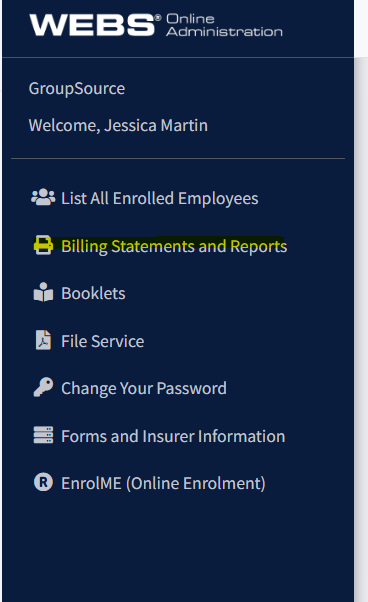
In addition to the PDF copy of your monthly billing statement posted on WEBS, you are able to pull a spreadsheet/CSV version. To do so, log in to WEBS and go to the “Billing Statements and Reports” screen:
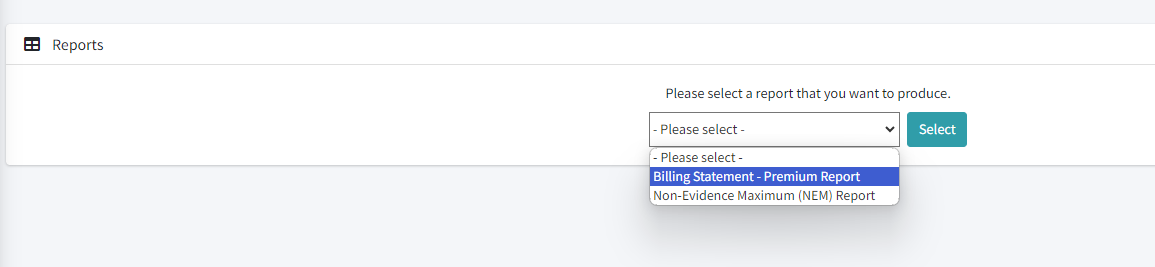
Select the “Report” option from the screen:

Select “Billing Statement – Premium Report” from the dropdown menu:
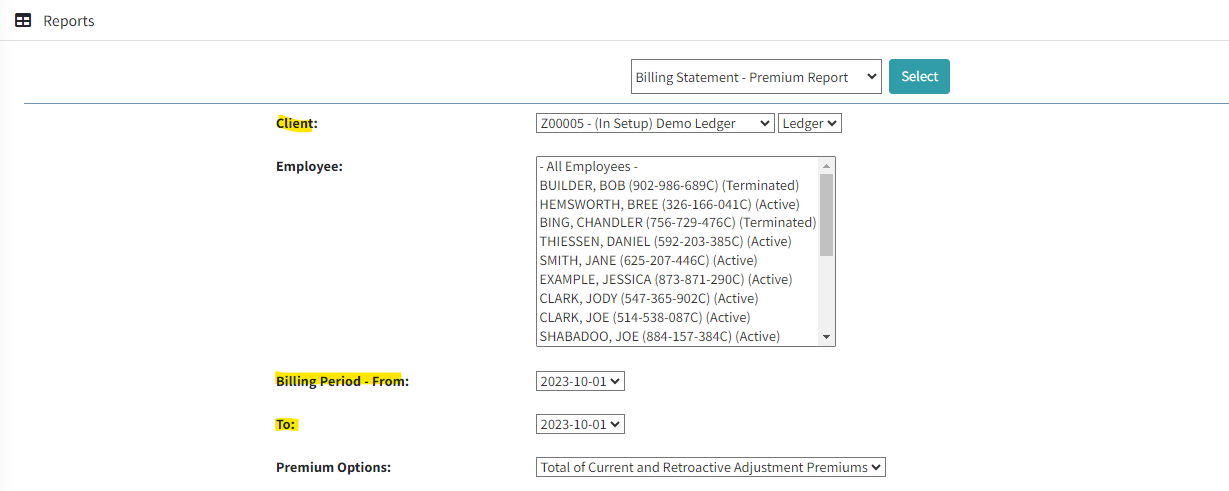
On the report screen, select your client name, the month for which you wish to generate the bill:
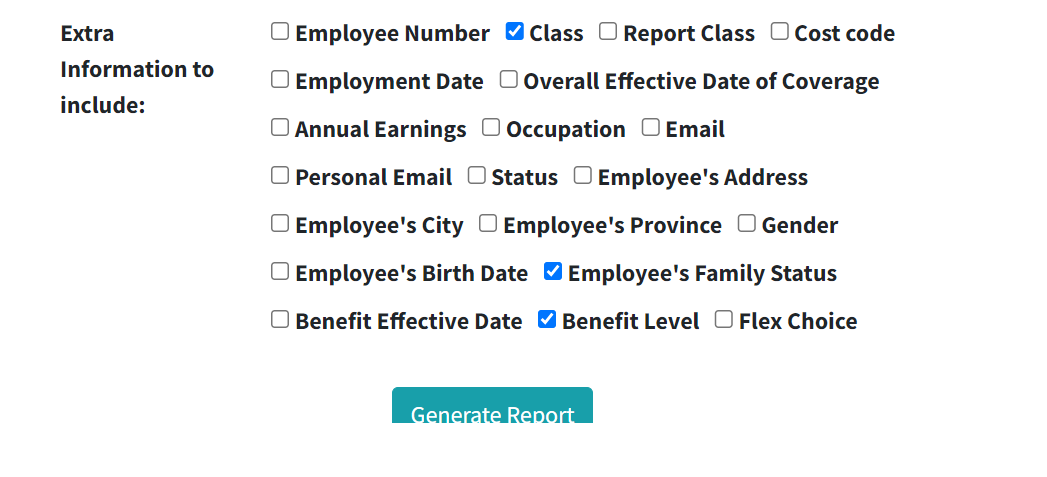
Under the extra information to include, you can select all information your report requires. If you are looking for the levels of coverage for an employee, for example, you would select benefit level. Once you have selected all of the information you require, click on “Generate Report” to have it produced:
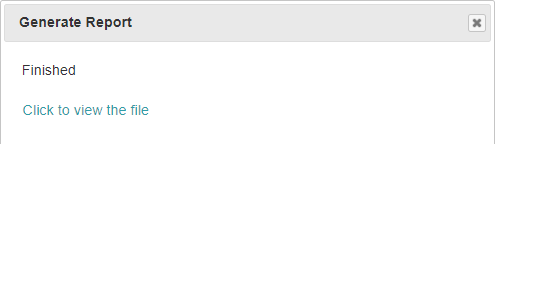
Once the report is ready, you will receive a pop-up to confirm. Click to view the spreadsheet file:
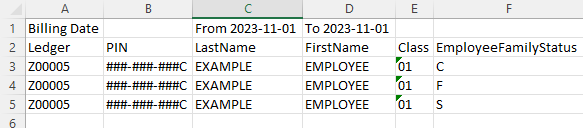
The spreadsheet will provide all information for the members, as selected. In the example above, it’s provided family status:
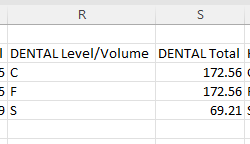
It will also include all benefit amounts as the levels, as selected. For example, this spreadsheet provides the levels of coverage as well as the premiums for dental. All other applicable benefits will appear on the spreadsheet:
If you have any questions with this report, please reach out to your assigned Billing Administrator.