You are able to access a non-evidence maximum (NEM) report through WEBS to determine those employees who are eligible to apply for excess coverage. To do so, please use the following steps:
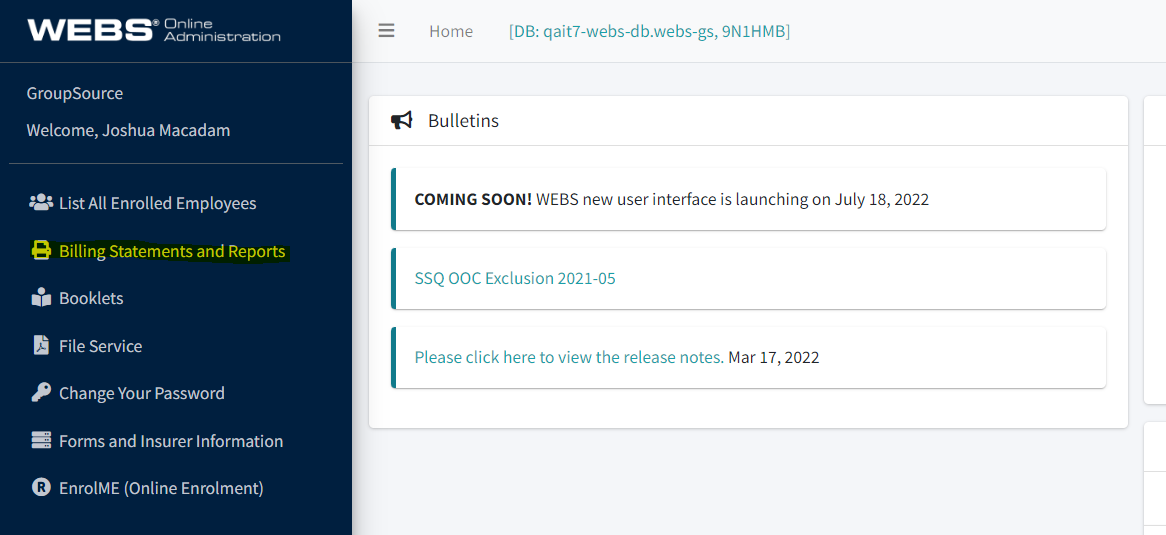
Once you are logged into WEBS, select the “Billing Statements and Reports” link from the main menu along the left-hand side of WEBS
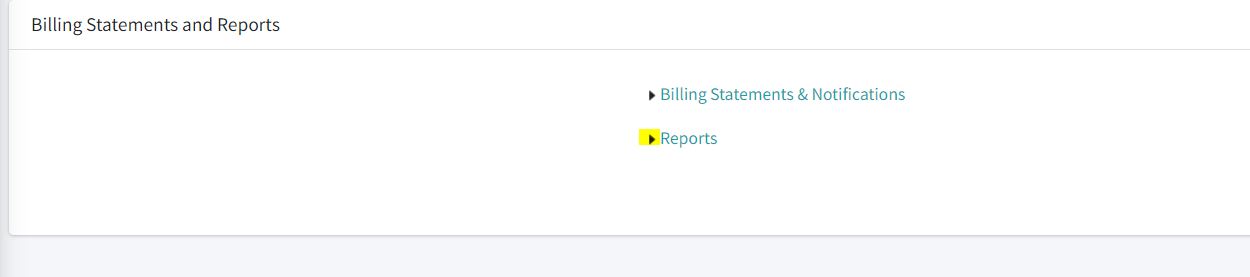
Select the “Reports” link
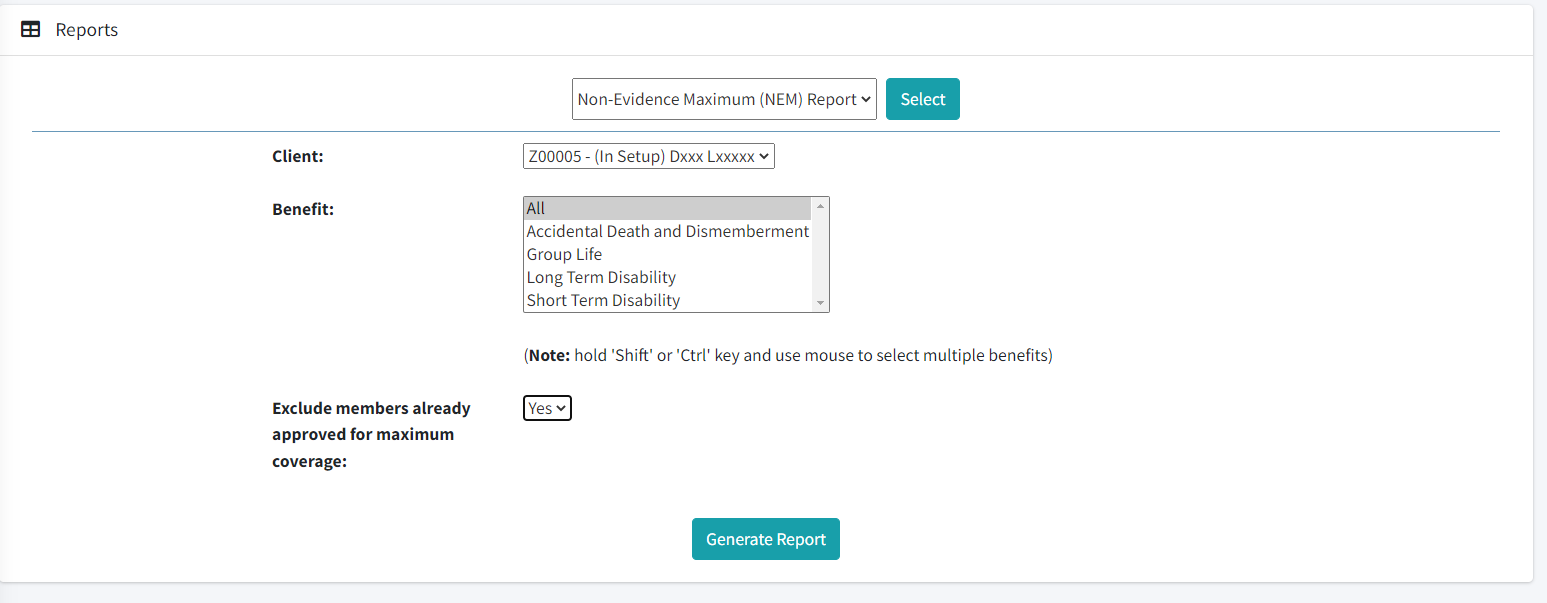
Choose the “Non-Evidence Maximum (NEM) Report” from the dropdown and click “Select”

You will now be to the Reports Screen. Ensure that the Client indicated is the correct one for the report you are running. Under the “Benefit” dropdown, select the appropriate benefit. If you’d like to review for all applicable benefits, select “All”. Exclude any employees who have reached the maximum coverage allowable under your plan for the selected benefits by choosing “Yes” from the appropriate drop down
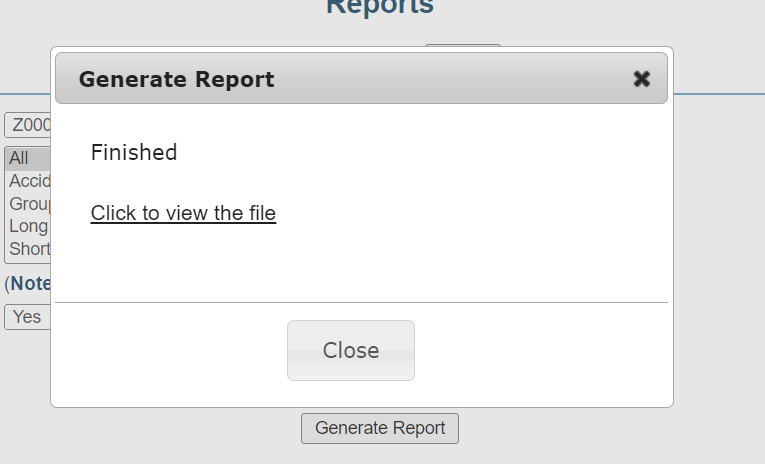
Click the “Generate Report” button. WEBS will then generate an NEM Report for all selected benefits for all applicable employees. Once it is done processing, click to view the file.
The report will look like the below template. Review for any employees eligible to apply for excess coverage, and advise your employees of their eligibility to apply. If they would like to proceed, please contact our Medical Underwriting Administration department at medicalunderwriting@groupsource.ca to proceed.
